Why WordPress XML Import Best Practices (and Pitfalls) Are Essential
WordPress XML Import: Best Practices & Error Prevention

Successfully executing a WordPress XML import, following best practices (and avoiding common pitfalls), requires meticulous preparation to prevent data loss and technical errors during content migration. By directly applying advanced methodologies, you safeguard the integrity of your database and preserve your accumulated SEO value. The process is often more complex than simply uploading a file to your server.
A flawless execution begins with cleaning up source files and checking server limits. When working with XML imports, you must consider memory limits and the specific structure of your schema. Incorrect actions can lead to broken links or harmful duplicate content.
- Always check the XML file size.
- Create a complete backup beforehand.
- Map fields manually for maximum precision.
- Test the import in a local environment first.

Why WordPress XML Import Best Practices (and Pitfalls) Are Essential
Managing a modern website often requires moving large amounts of data between different systems or environments. Whether you're migrating an online store to a new platform or simply aggregating content from an external source, understanding WordPress XML import best practices (and pitfalls) is a fundamental skill for every webmaster. XML files serve as the universal language that makes complex data structures translatable for WordPress. Without a solid strategy, however, this process can quickly devolve into a technical labyrinth where data is lost or the site structure is damaged. Understanding the underlying logic behind XML schemas and how WordPress interprets them forms the basis for a successful data transfer without downtime or error messages.
When starting a large-scale import, careful preparation of your database is crucial to prevent irreparable errors during the process.
The complexity of WordPress XML import best practices (and pitfalls) often lies in the details of mapping. Linking the correct XML tags to the corresponding fields in WordPress, such as titles, meta descriptions, and custom fields, requires precision. Many users underestimate the impact of incorrect character encoding or missing fields, which can lead to corrupted characters on the live website. By adhering to proven methodologies, you minimize the chance of duplicate content and ensure that the internal link structure is maintained. This is important not only for user experience but also for preserving your accumulated authority in search engines, as a sloppy import can directly impact your SEO value through broken links or missing metadata.
It's essential to understand that an XML import is more than just uploading a file; it's a strategic action that influences the backbone of your digital presence. In practice, we often see websites that skip these steps struggling with slow loading times due to a cluttered database. A clean import ensures a streamlined site ready for future growth and scalability.
When performing an efficient WordPress XML import best practices (and pitfalls) guide for advanced users, it is advisable to first use a test environment to verify data integrity before going live.
The Technical Foundations of XML Structures in WordPress
XML, or Extensible Markup Language, functions as a flexible container for data that WordPress can read via various plugins or its built-in import tool. The beauty of XML is that it is readable by both humans and machines, provided the hierarchy is correctly structured. Within the context of WordPress XML import best practices (and pitfalls) for developers, it is essential that parent-child relationships between different elements, such as categories and subcategories, are strictly defined. If an XML file does not meet the expected standards, the WordPress parser will generate errors, resulting in incomplete imports. Manually checking XML validity can save a lot of headaches during the final execution of the import task.
A common pitfall is ignoring server limits, such as maximum upload size and script execution time, which often lead to interrupted processes.
To bypass these technical hurdles, professionals often use specialized tools that can divide large XML files into smaller chunks. This prevents server overload and ensures more stable data processing. Furthermore, it is crucial to pay attention to media import; images called in the XML must be accessible via a stable URL to be correctly included in the WordPress media library. The process of WordPress XML import best practices (and pitfalls) implementation thus also includes managing external assets. Good preparation in this area prevents you from having to manually repair or link hundreds of images to the correct posts afterward.
For those looking for more depth on optimizing their website after a large data import, the page on affordable search engine optimization for your website offers valuable insights. It is pointless to import thousands of pages if they are not optimized for the end-user or search engines.
"A successful XML import stands or falls on the quality of the source code and the accuracy of the mapping logic." - A widely heard adage among WordPress specialists in practice.
Using XML offers immense flexibility but also requires strict discipline in managing metadata and taxonomies to prevent chaos.
Strategic Advantages of a Structured Import Approach
Adopting a structured approach to WordPress XML import best practices (and pitfalls) offers numerous benefits that go beyond simply technically transferring data. First, it allows you to edit large amounts of content in bulk before it goes live. For example, you can perform find-and-replace actions in the XML file to update outdated brand names or URLs. Second, it provides an excellent opportunity to review and improve your content hierarchy. By critically examining how data is organized during the import phase, you can create a more logical navigation structure that significantly enhances the user experience. This strategic aspect is often overlooked but is essential for a website's long-term success.
Below are some crucial steps to consider when planning your import journey:
- Always validate the XML file for syntax errors before starting the import in the WordPress environment.
- Create a complete backup of the database and the wp-content folder to immediately revert to the previous state in case of errors.
- Check that all necessary plugins and theme support for custom post types are active BEFORE the WordPress XML import best practices (and pitfalls) execution.
- Test the import first with a small subset of the data (e.g., 5 items) to verify the mapping.
- Monitor server logs during the process to detect any timeouts or memory issues early on.
In addition to technical execution, it's also wise to consider the SEO implications of your new content structure after the import.
Another important aspect is data consistency. When merging information from different sources via XML, there's a good chance that variations in dates, author names, or tags will occur. A good WordPress XML import best practices (and pitfalls) strategy therefore also includes a data cleanup phase. This ensures your website maintains a professional appearance and that filters and search functions on the site continue to work correctly for your visitors. For more information on content management and SEO, you can visit the blog section of our website. The correct
Step-by-Step Guide for a Flawless XML Import in WordPress
Successfully transferring data begins with thorough preparation of your database and files. Before starting with WordPress XML import best practices (and pitfalls), it's essential to create a full backup of your current environment. Additionally, check that the XML structure matches the fields in your target site, as incorrect mapping often leads to corrupt data or missing images. A structured approach prevents you from having to make manual corrections midway through the process, which is time-consuming and error-prone.
WordPress XML import best practices (and pitfalls) require you to temporarily increase your server's PHP memory limit to prevent timeouts when processing large files.
Technical Configuration and Mapping
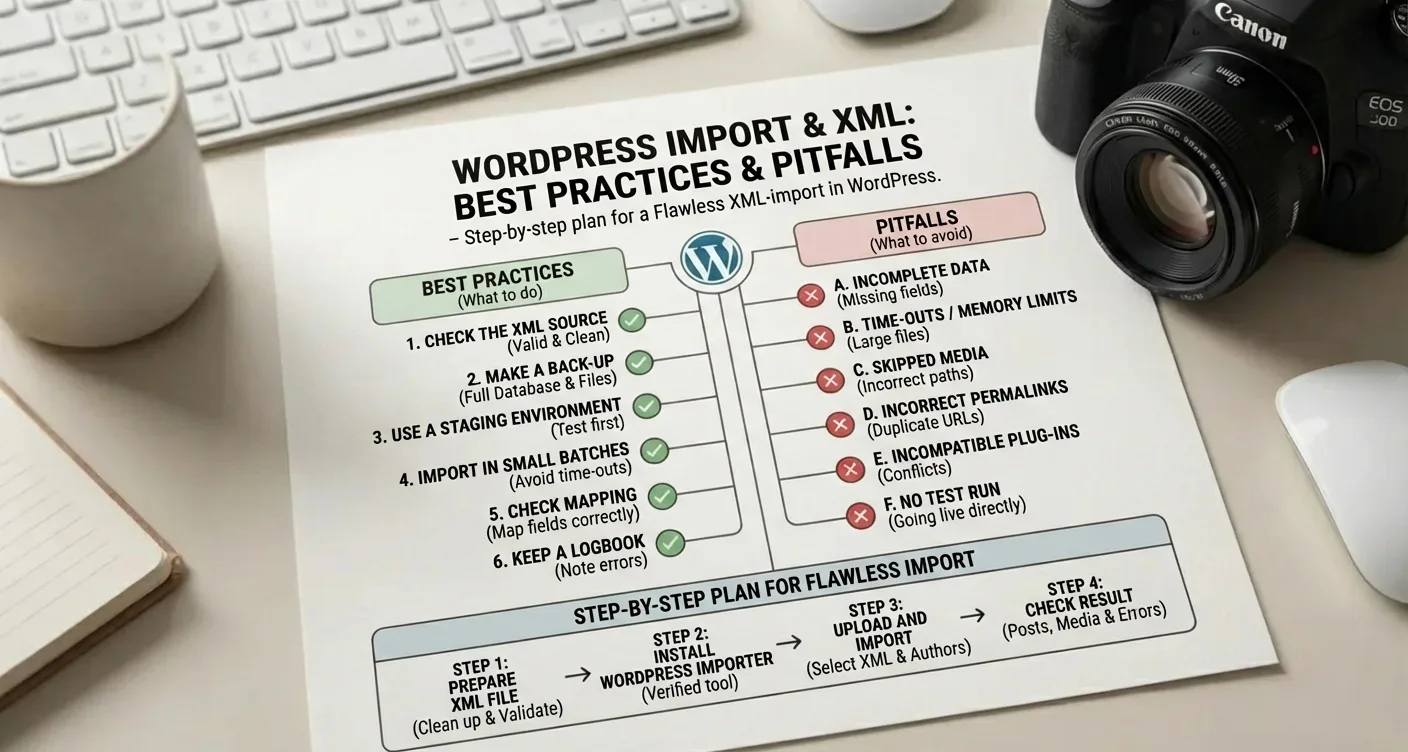
During the actual import phase, the assignment of authors and taxonomies is crucial for preserving your SEO value. Use tools like the WP All Import plugin for complex data structures, meticulously linking each XML element to the correct WordPress post meta. Pay specific attention to handling attachments; ensure that source URLs are accessible so that the media library is populated correctly. Don't forget to check the internal link structure after the import, for example, by looking at your WordPress website design settings to immediately address visual inconsistencies.
"A flawless migration depends not only on the software but primarily on the integrity of the source data and the logical construction of the import script."
When applying WordPress XML import best practices (and pitfalls) tips, it is advisable to first import a small test set to validate the results.
Verification and Post-Import Care
After the import is complete, you should check the site for broken links and missing metadata. Use a log file to verify that all records have been processed successfully without warnings. It is advisable to consult the WordPress XML import best practices (and pitfalls) guide for advanced users for cleaning up superfluous database entries that may have accumulated during the process. Also, check the official documentation on WordPress.org for the latest standards. A clean database ensures faster loading times and a better user experience on all devices.
- Validate the XML syntax with an external validator before you begin.
- Temporarily deactivate heavy plugins to free up server resources for the WordPress XML import best practices (and pitfalls) strategy.
- Check that all images are correctly linked in the media library.
- Perform database optimization after completing the import session.
Remember that a flawless XML import lays the foundation for your continued online visibility and technical stability.
Common Technical Pitfalls and How to Avoid Them
When performing a large-scale migration or data transfer, the chance of errors is significantly high if you are not optimally prepared. One of the most persistent problems with WordPress XML import best practices (and pitfalls) is exceeding server limits, such as maximum execution time or PHP memory limit. When an XML file is too large, the process can stop halfway. This results in incomplete datasets or duplicate content that directly negatively impacts your SEO value. It is therefore essential to split large files into smaller segments to ensure server stability during processing.
Additionally, a successful import requires accurate checking of character encoding to prevent strange characters in your texts.
Data Structure and Media Management
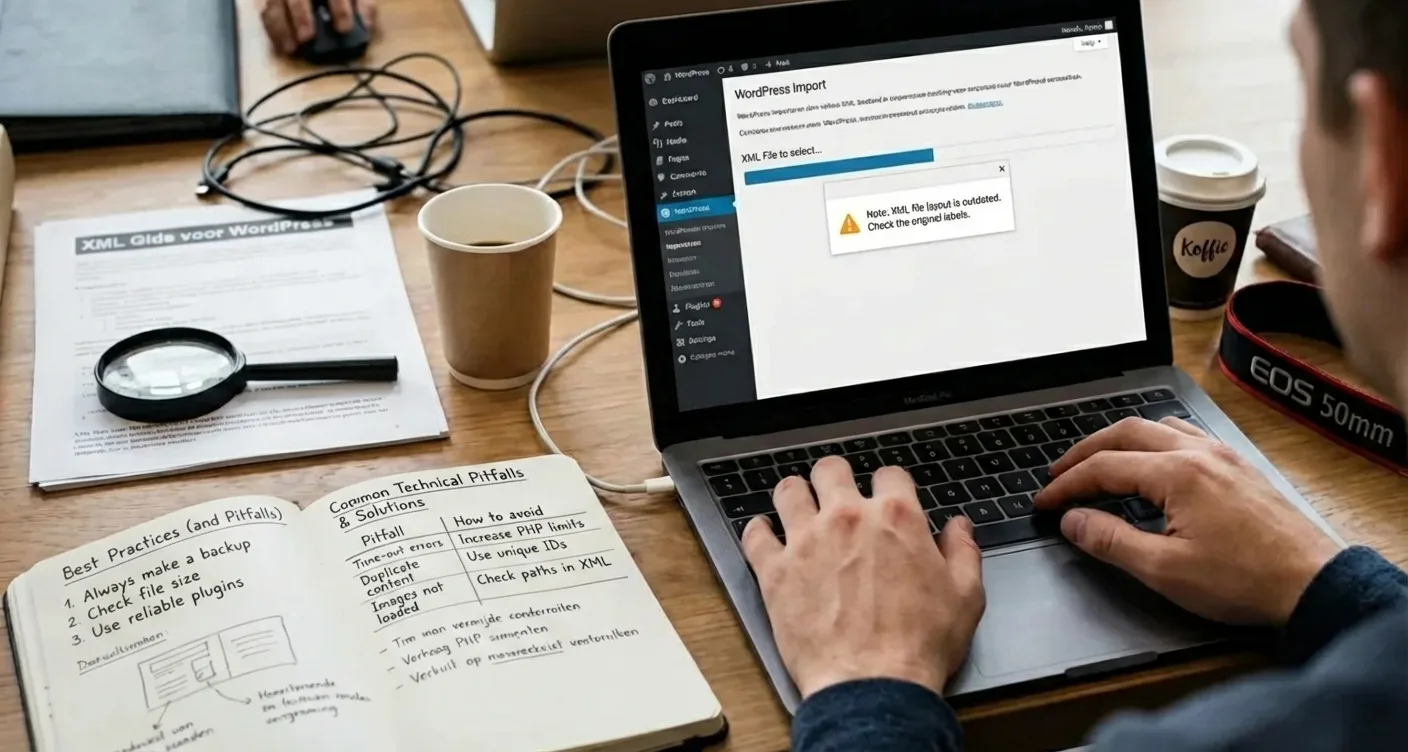
Another critical pitfall is incorrect linking of media files. Often, URLs in the XML file are not correctly converted to the new media library, leaving images broken on the live website. Within the strategy of WordPress XML import best practices (and pitfalls), it is crucial to verify that source files are still accessible during the process. If the old server disconnects before images are retrieved, your new site will be left with empty frames. Also, don't forget to perform a thorough check of the internal link structure after the import.
"A successful import stands or falls on the quality of the source code; a small error in the XML hierarchy can jeopardize complete database integrity."
For optimal results, you might consider enlisting the help of a WordPress specialist. They can resolve complex mapping problems that often occur with advanced import methods.
Validation and Performance
Before starting the final import, it is mandatory to validate your XML file against a schema to eliminate syntax errors. Faulty tags can cause WordPress to misinterpret data, leading to corrupt metadata or incorrect taxonomy assignments. Always create a full backup of your database before you begin. If anything goes wrong, you can immediately revert to the stable version without data loss. For more information on technical standards, you can consult the official documentation on WordPress.org.
- Always check your hosting package's server limits.
- Use tools to split XML files larger than 10MB.
- Temporarily deactivate heavy plugins for more speed.
- Verify that all categories have been correctly transferred afterward.
Ignoring these steps can lead to a slow website. Therefore, always ensure good speed optimization after importing large amounts of new data.
Successfully transferring data requires meticulous preparation and technical control.
By considering the correct structure and server limits, you prevent error messages. Our guide on WordPress XML import best practices (and pitfalls) shows that backups and data validation are essential for a flawless migration without losing valuable content.
Good preparation is half the battle when importing complex files to your website. Always pay attention to plugin compatibility and check that all images are correctly included in the XML file. Do you need help with a complex migration or want to know more about optimizing your database? Contact our specialists today for a free consultation or check out our other technical guides to elevate your WordPress site and avoid future errors.
Frequently Asked Questions
What are the key WordPress XML import best practices (and pitfalls) when migrating a website?
When migrating, it's essential to first create a complete backup and check the PHP memory limit. A common pitfall is importing files that are too large, which can often be solved by splitting the XML file into smaller parts.
How can you prevent error messages during a WordPress XML import?
Ensure all necessary plugins and themes are installed on the target site before you begin. Following WordPress XML import best practices (and pitfalls) helps you avoid timeout errors by increasing the 'uploadmaxfilesize' in your server settings.
Why does image importing often fail during an XML import?
This usually happens because the source website is no longer accessible or because the media files are too large for the server to download within the time limit. Always check if the 'import attachments' option is ticked and if the server allows external connections.
When is it advisable to use an external plugin instead of the standard WordPress importer?
Use an external plugin like WP All Import when you need to map complex data structures or custom fields that the standard tool does not support. This is especially useful for large e-commerce sites or websites with extensive metadata that require precise control.
How SEO Supercharged helps you here
SEO Supercharged is fully online (service area: online, worldwide), so you can use it from anywhere.
The platform is built for SMEs with growth ambitions, Marketing managers in medium-sized organizations, E-commerce operators and webshop owners, SaaS companies and tech startups, B2B service providers and business consultants, Content and communication specialists, International exporters and global brands, Local entrepreneurs with a digital focus, Digital marketing agencies and agency owners.
You can use it for, among other things, Geo-Strategy & AI Audit, Hybrid SEO & Geo Content Creation, LLM Visibility Analysis, Structured Data & Schema Optimization, Brand Authority & Citation Building, E-E-A-T Content Optimization.
Want to tackle this directly? Plan your structure with the Sitemap Architect, or start a free SEO analysis.
Related articles
- Sitemap Architect: Build a Site Structure That Ranks (SEO, AI, GEO)
Learn to use Sitemap Architect for a content map boosting rankings, internal links, indexing & AI answers. Templates, checklists, pitfalls included.
- Why You Should Build a Sitemap and Website Structure First for SEO
While content is key, effective SEO starts earlier. Discover why building a solid sitemap and clear website structure is the foundational step for improved search rankings.
- Scalable SERP Meta Optimization: Titles and Descriptions that Drive Clicks
Master scalable SERP meta optimization. Learn to craft click-worthy titles & descriptions that boost CTR, improve SEO strategy, & drive organic traffic. Get.
- Multilingual Sitemaps: URL Structure & Hreflang Strategy for Global SEO
Master multilingual sitemaps, URL structure, and hreflang strategy for superior international SEO. Optimize your global website to attract more visitors now!
- Service Page Structure: From 6 Topics to 30 Pages Without Overlap
Optimize your service page structure: scale from 6 core topics to 30 unique pages without overlap. Learn to expand content and boost SEO. Read our guide!