Not Indexed? How to Fix WordPress Indexing Issues (Complete Guide)
Fix WordPress Indexing Issues: Complete Technical Guide
- You publish content.
- You optimize titles.
- You create internal links.
Yet, your page isn't appearing in Google.
If you search for:
site:jouwdomein.beAnd your new page doesn't show up…
Then you have a WordPress indexing problem.
⚡ In this guide, you'll learn
- Why your WordPress site isn't getting indexed
- How to use Google Search Console
- How to fix a noindex error
- How canonical tags and sitemaps affect indexing
- How to systematically debug technical errors
What Does “WordPress Not Indexed” Mean?
When a page isn't indexed, it means:
Google knows about your page but has decided not to include it in search results.
Or worse:
Google hasn't discovered your page yet.
These are two completely different situations.
Step 1: Verify If the Page Is Truly Not Indexed
Go to Google and type:
site:jouwdomein.be/pagina-urlNo results?
Go to Google Search Console:
-
Open URL Inspection
-
Paste the exact URL
-
View status
Possible Status Messages in Google Search Console
You might receive one of these WordPress indexing messages:
-
Discovered – currently not indexed
-
Crawled – currently not indexed
-
Excluded by 'noindex' tag
-
Duplicate page without canonical version
-
Page with redirect
WordPress Not Indexed – The 7 Most Common Causes
1️⃣ Noindex Tag Is Enabled
This is the classic culprit.
Check in WordPress:
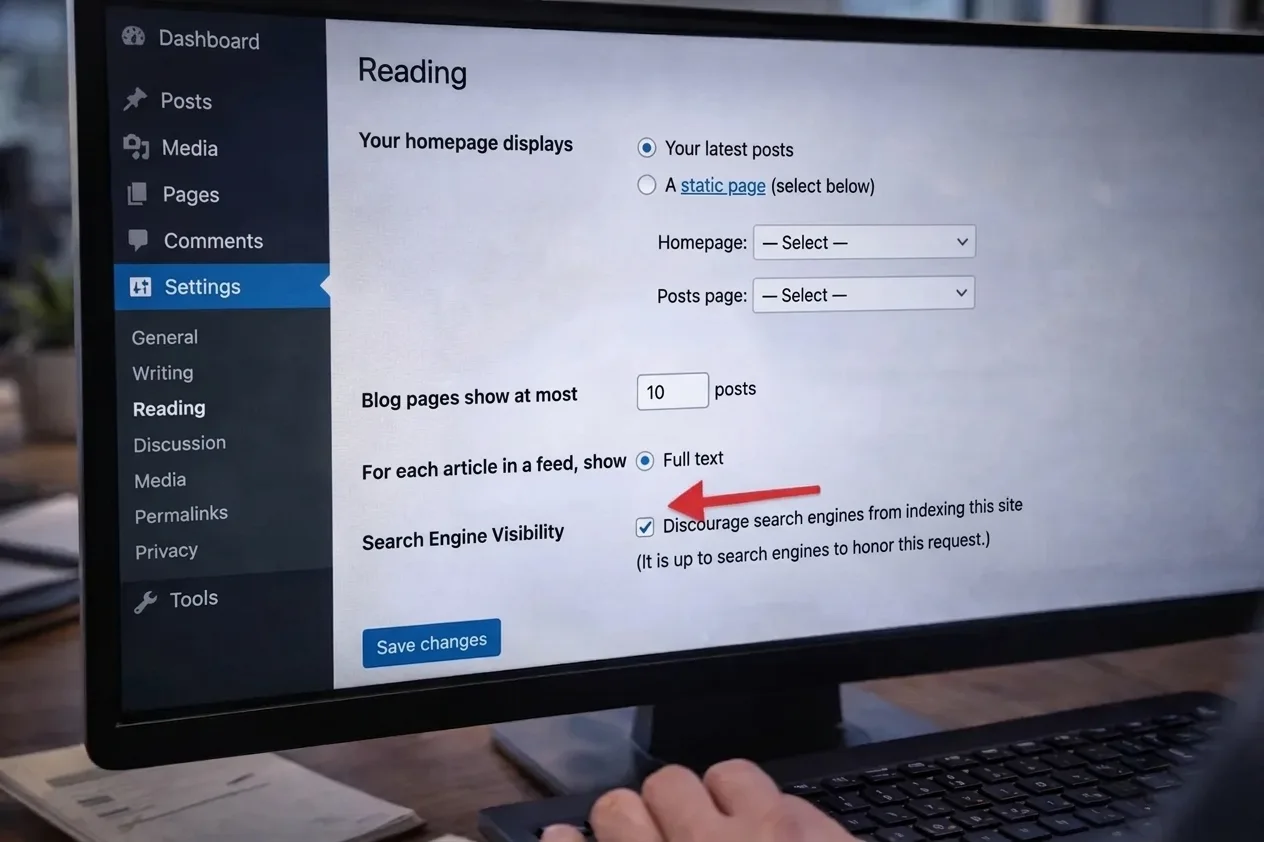
Settings → Reading →
“Discourage search engines from indexing this site”
This box should NOT be checked.
Also check your source code for:
<meta name="robots" content="noindex">If you see this, your page is intentionally blocked from indexing.
2️⃣ Canonical Tag Points to Another Page
If your canonical tag points to a different URL, Google will choose that version for indexing.
Also read:
WordPress canonical tags
Check your source code for:
<link rel="canonical" href="https://jouwdomein.be/andere-url/" />3️⃣ Sitemap Does Not Include the Page
If your XML sitemap doesn't include the page, indexing will take longer.
4️⃣ Poor Internal Linking
Google discovers new pages through internal links.
No internal links = no discovery.
Read:
WordPress internal linking structure
5️⃣ Crawl Budget Issues
If your site has:
-
10,000 low-quality pages
-
Lots of duplicate content
-
Indexes filter URLs
Then Google wastes crawl budget.
6️⃣ Server Problems
Check for:
-
500 errors
-
Slow loading times
-
Hosting timeouts
Use tools such as:
-
PageSpeed Insights
-
Server logs
7️⃣ Thin Content
Google doesn't index pages without value.
Too little text?
No structure?
No internal links?
Then your page might not be included in the index.
Also read:
Common WordPress SEO Mistakes
Technical Debug Checklist (Copy-Paste)
🔎 Indexing Debug Checklist
- Is the site not set to noindex?
- Is the page not set to noindex?
- Is the canonical tag set correctly?
- Does the sitemap contain the page?
- Is the sitemap submitted in Search Console?
- Are internal links pointing to the page present?
- No redirects?
- No 404 errors?
- No duplicate versions (www/non-www)?
- Is HTTPS correctly enforced?
- No robots.txt block?
- Is the content at least 800+ words?
- Unique meta title & description?
Checking Robots.txt
Go to:
https://jouwdomein.be/robots.txtLook for:
Disallow: /That blocks everything.
Also check for specific blocks.
Using Google Search Console Effectively for WordPress
Utilize these three functions:
1️⃣ URL Inspection Tool
Check individual pages.
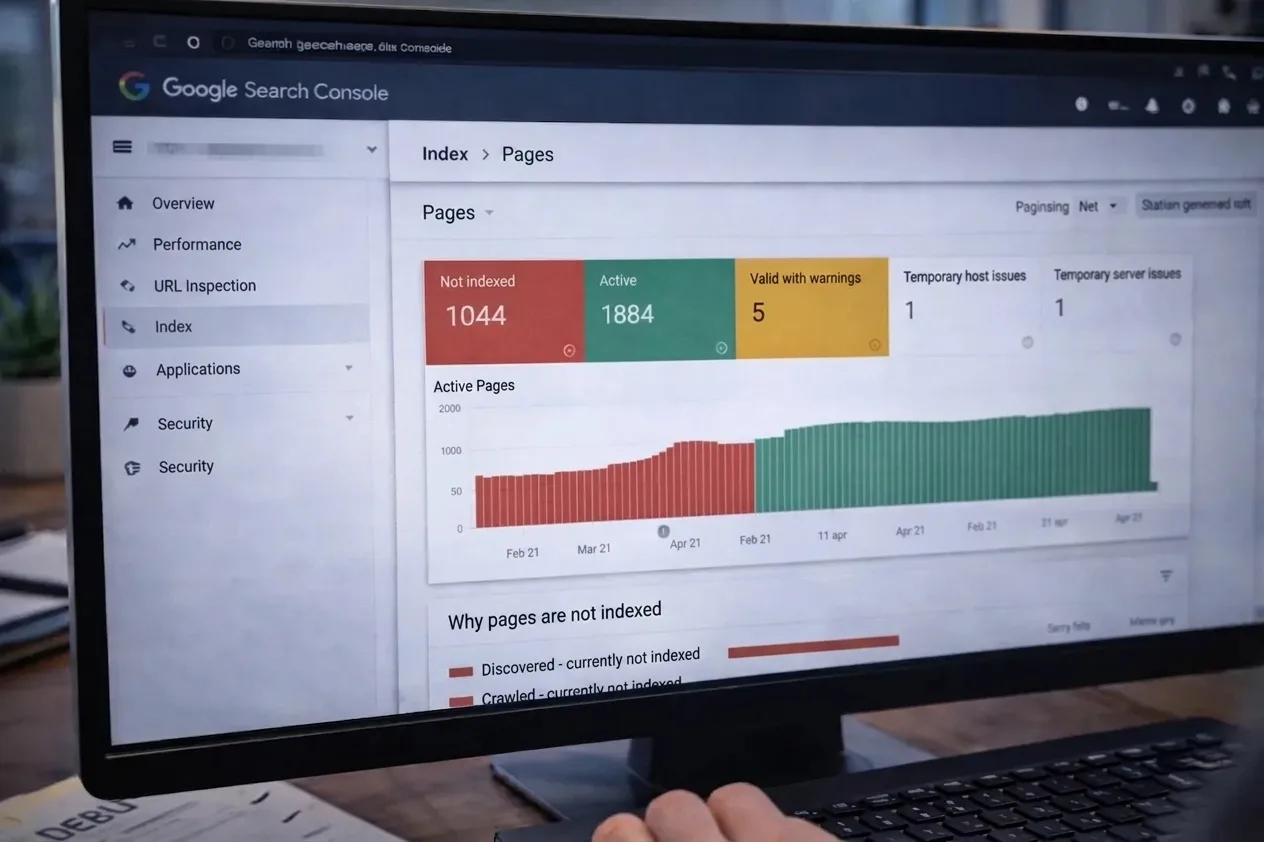
2️⃣ Index Coverage Report
View overall indexing status.
3️⃣ Sitemaps
Monitor crawl status.
Speeding Up Indexing
Want to speed up indexing?
-
Add an internal link from the homepage
-
Resubmit your sitemap
-
URL Inspection → “Request Indexing”
-
Create an external link (backlink)
-
Add structured data
Also read:
WordPress Schema markup
When Is It Up to Google?
Sometimes, Google simply chooses not to index a page.
This can happen due to:
-
Low authority
-
Low content value
-
Too many similar pages
-
Poor internal structure
Indexing isn't a right.
It's earned.
WordPress Indexing & SEO Supercharged
With SEO Supercharged, you can:
-
Perform a complete site audit
-
Detect indexing conflicts
-
Analyze crawl structure
-
Identify thin content
-
Optimize your sitemap
-
Spot canonical errors
Plugins fix settings.
SEO Supercharged optimizes your entire SEO architecture.
Frequently Asked Questions
❓ How long does indexing take?
Typically 1–14 days.
❓ Do I need to manually submit every page?
No, only important pages.
❓ What if Google “Crawled – Not Indexed” shows?
This means Google considers the page to have insufficient value or be a duplicate.
⚡ Get Started Instantly
Want to tackle this strategically? Check your WordPress SEO with the Web Page Audit, or start a free SEO analysis without obligation.
Summary
If your WordPress site isn't getting indexed:
-
Check noindex settings
-
Verify canonical tags
-
Review your sitemap
-
Examine internal links
-
Check robots.txt file
-
Analyze content quality
Indexing problems are almost always technically solvable.
Related articles
- WordPress SEO Optimization: The Complete Guide for Higher Google Rankings
Learn WordPress SEO optimization from A to Z. Master meta titles, descriptions, indexing, schema markup, and internal linking for higher Google rankings.
- How to Optimize Your WordPress Meta Title and Meta Description
Learn how to write and set WordPress meta titles and descriptions for higher rankings and more clicks. Step-by-step guide and best practices included.
- Schema Markup in WordPress: Optimize for Rich Results and Better Google Visibility
Learn how to easily add Schema Markup in WordPress. Implement JSON-LD, optimize FAQ schemas, and boost organic visibility with search engine rich results.
- How to Set Up Canonical Tags in WordPress: Avoid Duplicate Content
Learn how to correctly set up canonical tags in WordPress. Prevent duplicate content, fix indexing issues, and boost your SEO with this guide!
- How to Set Up a WordPress XML Sitemap (Step-by-Step Guide)
Want to set up your WordPress XML sitemap correctly? Learn step-by-step how to configure, submit to Google Search Console, and boost your SEO indexing.