How to Set Up Canonical Tags in WordPress: Avoid Duplicate Content
How to Set Up WordPress Canonical Tags Correctly
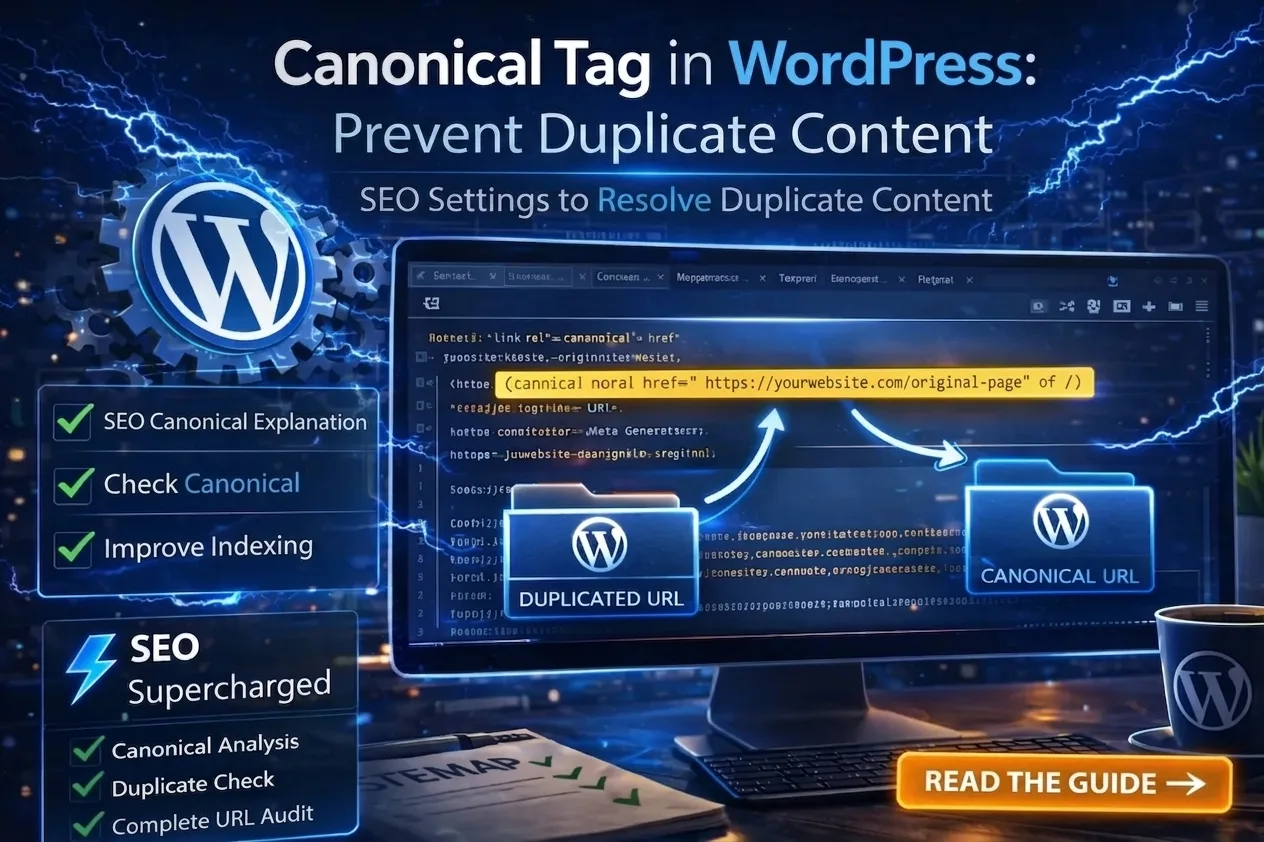
Duplicate content and Canonical Tags in WordPress are no myth.
It is one of the most underrated SEO issues in WordPress.
Many websites lose rankings without even realizing it. Not because their content is poor — but because Google doesn't know which version of a page is the correct one.
The solution?
Setting up the WordPress canonical tag correctly.
⚡ What you'll learn in this guide
-
What a canonical tag is
-
How duplicate content occurs
-
How to set up canonical tags in WordPress
-
How to check for canonical errors
-
How to prevent ranking loss
What Is a Canonical Tag?
A canonical tag is an HTML element that tells search engines:
“This is the original version of this page.”
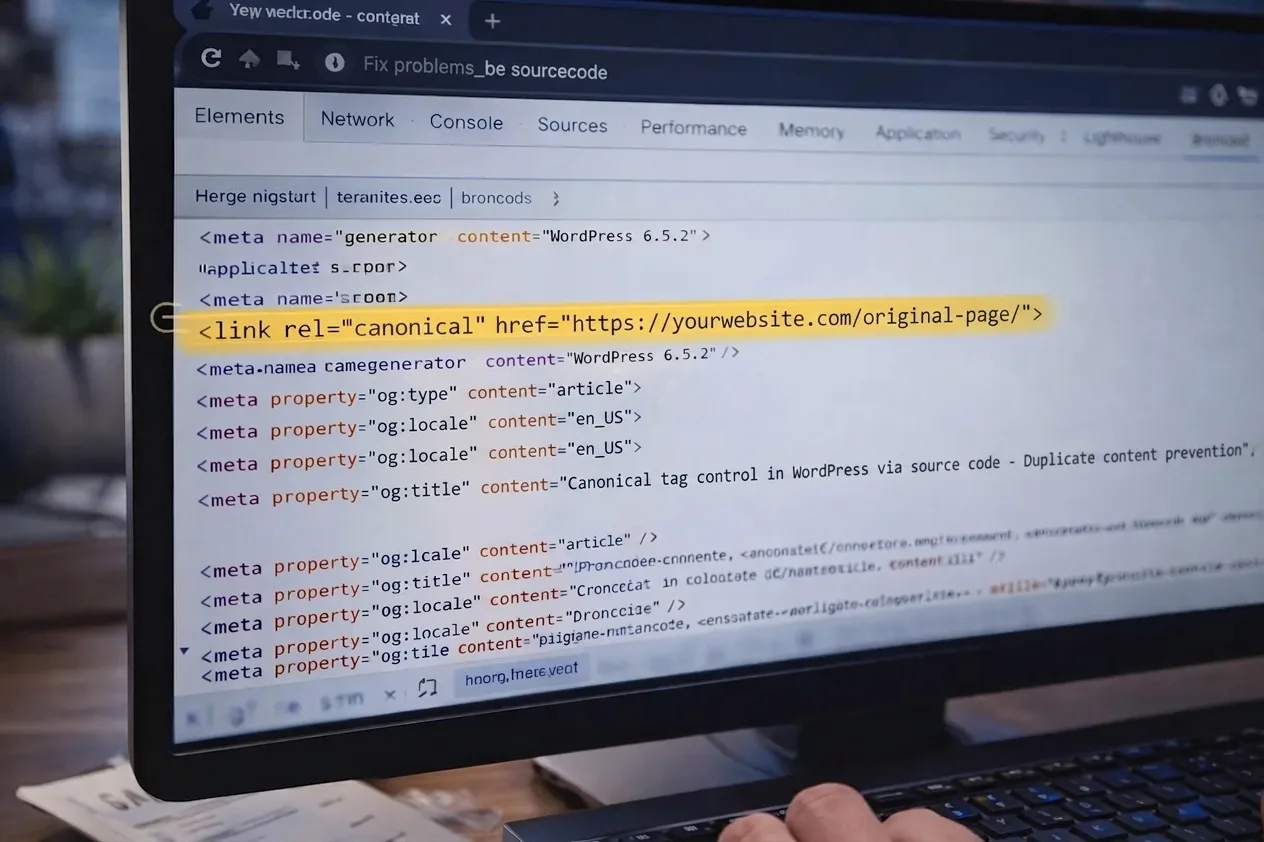
From a technical standpoint, it looks like this:
<link rel="canonical" href="https://yourdomain.com/original-page/" />This tag prevents Google from treating multiple URLs as separate pages.
Why Are Canonical Tags Crucial for SEO?
Without a canonical tag, Google might treat these URLs as completely different pages:
-
/blog/seo-tips
-
/blog/seo-tips/
-
/blog/seo-tips?utm=facebook
-
/category/seo/seo-tips
To you, they are one and the same page.
To Google, they are four separate ones.
And that leads to:
-
Diluted link equity
-
Lower rankings
-
Wasted crawl budget
-
Indexing issues
Want to understand your basic structure first?
👉 https://seowebsites.be/nl/ai-generator-blog/wordpress-seo-optimalisatie/
How Does Duplicate Content Occur in WordPress?
WordPress automatically generates multiple archive pages:
-
Category pages
-
Tag pages
-
Author archives
-
Date archives
-
Internal search results
Additionally, you might have:
-
HTTP vs. HTTPS
-
WWW vs. non-WWW
-
URL parameters (tracking codes)
-
Paginated content
This is where duplicate content chaos begins.
How to Set Up Canonical Tags in WordPress
Method 1: Using an SEO Plugin (Recommended)
Most WordPress SEO plugins automatically add a self-referencing canonical tag.
How to verify this:
-
Open a page on your website
-
Right-click → “View Page Source”
-
Search (Ctrl+F or Cmd+F) for:
rel="canonical"Is the correct URL displayed there?
If so, you are good to go.
Method 2: Setting Canonical Tags Manually
In rare cases, you might want to set a custom canonical tag manually via:
-
An SEO plugin's custom canonical field
-
Header injection
-
Your theme's functions.php file
Example:
<link rel="canonical" href="https://yourdomain.com/correct-url/" />But be careful. An incorrect canonical tag can:
-
De-index entire sections of your website
-
Destroy your organic rankings
-
Cut your organic traffic in half
🖼 Image Placeholder
When Should You Manually Adjust Canonical Tags?
1. Paginated Content
For example, blog archive pages like /page/2/
2. E-Commerce Product Filters
For example:
-
?color=blue
-
?size=xl
3. Cross-Posting / Syndicated Content
When the exact same content is published across multiple URLs or external domains.
Canonical vs. 301 Redirect: The Critical Difference
| Canonical Tag | 301 Redirect |
|---|---|
| Specifies preferred version | Redirects the user |
| Both URLs remain accessible | Only one URL remains active |
| Consolidates link equity | Replaces the old URL |
Use a 301 redirect when a page is permanently gone or moving.
Use a canonical tag when multiple active versions of a page must co-exist.
WordPress Canonical Tags in Practice: An Example
Let’s say:
You have a product located at:
/product/seo-tool
But it is also accessible via:
/category/tools/seo-tool
In this case, the canonical tag on both pages should point to:
/product/seo-toolCommon Canonical Tag Errors That Ruin Rankings
❌ Canonical points to the wrong page
❌ Canonical points to a 404 error page
❌ Canonical points to a "noindex" page
❌ Canonical chains (Page A → B → C)
❌ Missing self-referencing canonical tag
Want to know which common SEO mistakes are costing you rankings?
👉 https://seowebsites.be/nl/ai-generator-blog/wordpress-seo-optimalisatie/wordpress-seo-fouten
Canonical Tags & XML Sitemaps
A properly configured XML sitemap should only contain canonical URLs.
Recommended reading:
👉 https://seowebsites.be/nl/ai-generator-blog/wordpress-seo-optimalisatie/wordpress-xml-sitemap
Canonical Tags and Indexing Issues
If Google isn't indexing your pages, it might be because:
-
The canonical tag points to a different URL
-
Google chose a different canonical than the one you specified
-
There are conflicting internal linking signals
You can easily check this in:
Google Search Console → URL Inspection Tool
Learn more about this:
👉 https://seowebsites.be/nl/ai-generator-blog/wordpress-seo-optimalisatie/wordpress-indexatie-google
Structured Data & Canonical Tags
Your schema markup / structured data should always match your canonical URL.
Read more:
👉 https://seowebsites.be/nl/ai-generator-blog/wordpress-seo-optimalisatie/wordpress-schema-markup
How to Audit and Check for Canonical Conflicts
You can check your canonicals using tools like:
-
Your browser's Page Source
-
Screaming Frog SEO Spider
-
Google Search Console
-
Or a comprehensive site-wide SEO audit
With SEO Supercharged, you can easily:
-
Detect canonical conflicts instantly
-
Analyze duplicate content issues
-
Verify your entire URL structure
-
Optimize your site's crawl efficiency
Plugins manage settings.
SEO Supercharged manages your entire SEO architecture.
Frequently Asked Questions
Does every page need a canonical tag?
Yes. Every page should have a self-referencing canonical tag by default.
Can a canonical tag point to the homepage?
Only if the page's content is identical to the homepage.
Can Google ignore canonical tags?
Yes. Google treats them as hints. If internal signals (sitemaps, redirects, internal links) conflict, Google may ignore your tag.
⚡ Take Action Now
Want to tackle this effectively? Audit your WordPress SEO with our Webpage Audit, or get started with a free SEO website analysis.
Summary
A correctly implemented WordPress canonical tag:
✔ Prevents duplicate content issues
✔ Consolidates search engine ranking signals (link juice)
✔ Optimizes crawl budget and indexation
✔ Boosts your organic ranking potential
Without proper canonicalization, you are playing SEO with missing puzzle pieces.
Conclusion
Duplicate content is rarely a penalty — it is a signaling problem.
Google craves clarity.
Canonical tags provide that clarity.
Ready to take full control of your WordPress SEO architecture?
Related articles
- WordPress SEO Optimization: The Complete Guide for Higher Google Rankings
Learn WordPress SEO optimization from A to Z. Master meta titles, descriptions, indexing, schema markup, and internal linking for higher Google rankings.
- How to Optimize Your WordPress Meta Title and Meta Description
Learn how to write and set WordPress meta titles and descriptions for higher rankings and more clicks. Step-by-step guide and best practices included.
- Schema Markup in WordPress: Optimize for Rich Results and Better Google Visibility
Learn how to easily add Schema Markup in WordPress. Implement JSON-LD, optimize FAQ schemas, and boost organic visibility with search engine rich results.
- How to Set Up a WordPress XML Sitemap (Step-by-Step Guide)
Want to set up your WordPress XML sitemap correctly? Learn step-by-step how to configure, submit to Google Search Console, and boost your SEO indexing.
- Not Indexed? How to Fix WordPress Indexing Issues (Complete Guide)
Is your WordPress site not indexed in Google? Learn how to fix common indexing issues, resolve noindex errors, and use Google Search Console effectively to get your pages discovered.