How to Set Up a WordPress XML Sitemap (Step-by-Step Guide)
How to Set Up a WordPress XML Sitemap for Better Indexing
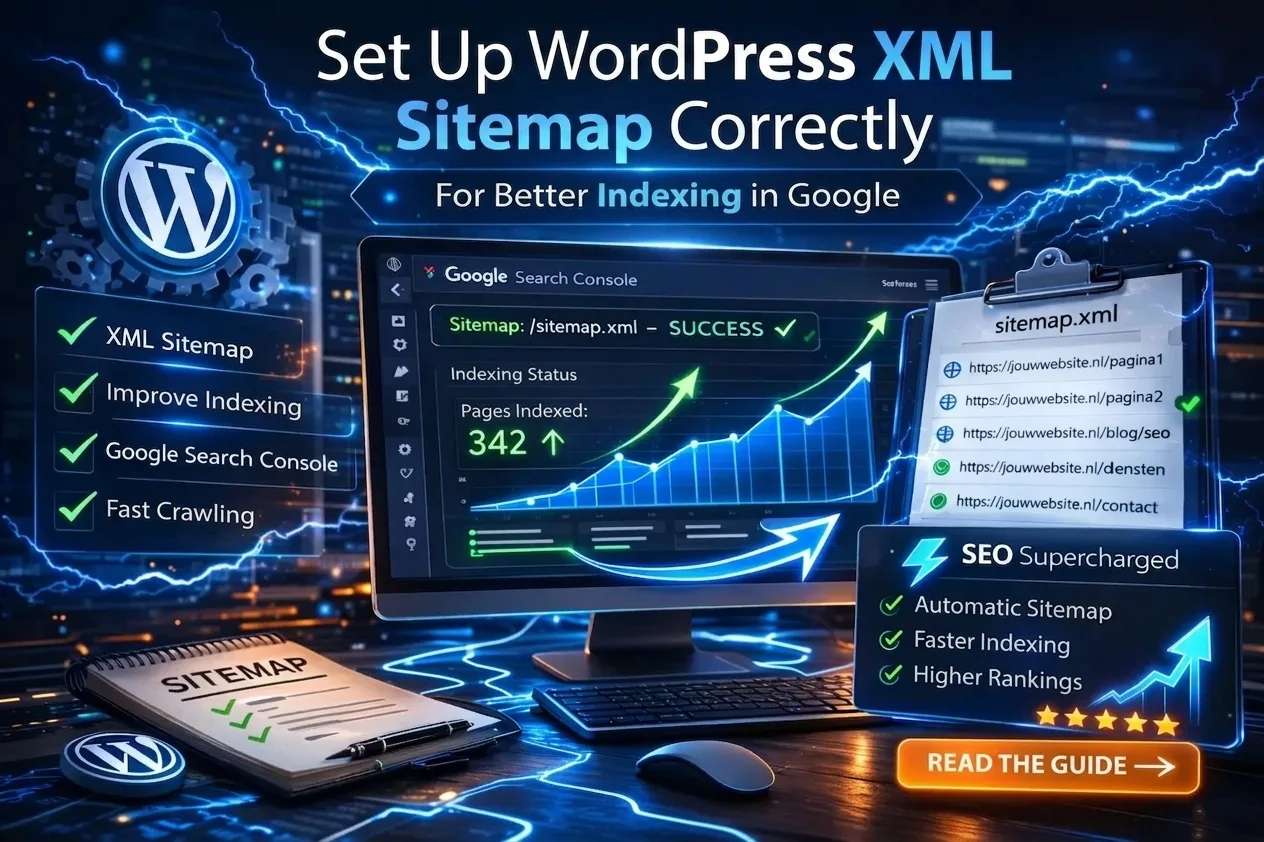
Setting up a WordPress XML sitemap correctly is one of the fastest ways to improve your WordPress indexing in Google.
Yet, many websites suffer from:
-
Incorrectly configured sitemaps
-
Indexation of unnecessary pages
-
Crucial pages being excluded
-
Or the XML sitemap hasn't even been submitted to Google Search Console
In this complete guide, you'll learn how to set up a WordPress sitemap, optimize it, and use it to boost your site's indexing.
What is an XML Sitemap?
An XML sitemap is a file that tells search engines like Google:
-
Which pages exist on your site
-
When they were last updated
-
Which pages are highly important
-
How your site structure is organized
“An XML sitemap helps Google crawl your site more efficiently, but it's no replacement for a solid internal linking strategy.”
Why is a WordPress XML Sitemap Crucial for SEO?
A properly configured Google XML sitemap ensures:
✔ Faster indexing
✔ Better crawl efficiency
✔ Reduced crawl budget waste
✔ Easier detection of indexing errors
Without a sitemap, Google has to “discover” your site.
With a sitemap, you define the architecture.
Want to understand the absolute fundamentals of WordPress SEO first?
👉 Read our pillar page here
Step 1: How to Set Up Your WordPress Sitemap
Method 1: Using an SEO Plugin (Most Common)
Most WordPress SEO plugins automatically generate an XML sitemap for you.
Simply navigate to:
-
SEO → General → Sitemaps
-
Make sure the sitemap feature is enabled
Your sitemap is usually located at:
/sitemap_index.xmlor
/wp-sitemap.xmlMethod 2: Without a Plugin (WordPress Core Sitemaps)
Since WordPress 5.5, WordPress has come with a built-in XML sitemap by default.
Check yours here:
https://yourdomain.com/wp-sitemap.xml🖼 Image Placeholder
Step 2: Submit Your XML Sitemap to Google
Generating a sitemap isn't enough. You need to submit it to Google.
Google Search Console Setup:
-
Log in to Google Search Console
-
Click on “Sitemaps” in the left-hand menu
-
Enter your sitemap URL:
sitemap_index.xml -
Click “Submit”
🖼 Image Placeholder
Step 3: Which Pages Should Be in Your XML Sitemap?
Not every single page on your site should be indexed.
What to INCLUDE:
-
Pages
-
Blog posts
-
Products
-
Categories (if they provide search value)
What to EXCLUDE:
-
Empty tags
-
Filter pages
-
Admin pages
-
Duplicate archive pages
-
Pages with a noindex tag
👉 Learn more about canonical tag configuration
Step 4: Boost WordPress Indexing Through Sitemap Optimization
Many websites make these common mistakes:
❌ Mistake 1: Sitemap contains thousands of irrelevant URLs
Google wastes your crawl budget on low-value pages.
❌ Mistake 2: Sitemap contains noindex pages
This causes indexing conflicts and confuses search engine bots.
❌ Mistake 3: Sitemap contains redirect URLs
This reduces overall crawl efficiency.
Sitemap Audit Checklist
| Checkpoint | Status |
|---|---|
| Only indexable URLs | ✔ |
| No 404 error pages | ✔ |
| No redirected URLs | ✔ |
| Properly configured canonical tags | ✔ |
| Up-to-date and dynamic | ✔ |
XML Sitemap vs. Internal Linking
A sitemap helps bots discover your content.
Internal linking distributes authority and PageRank.
👉 Learn how to structure your internal links correctly here
XML Sitemaps & Crawl Budget
Google allocates a limited crawl budget to every website.
If your sitemap is bloated with 2,000 low-quality pages, then:
-
Your most critical pages are crawled less frequently
-
Your overall indexing speed drops significantly
-
You waste ranking potential on useless pages
How to Verify That Your Sitemap Is Working
Check the status here:
Google Search Console → Indexing → Pages
Verify these statuses:
-
Indexed
-
Not indexed
-
Crawl errors
👉 Having indexing issues? Find out why here
Frequently Asked Questions (FAQ)
Should I include categories in my XML sitemap?
Yes, but only if they contain high-quality content and list indexable posts.
How often should an XML sitemap be updated?
It should update automatically every time you publish or update content.
Is an XML sitemap mandatory for SEO?
It's not strictly mandatory, but it is highly recommended for proper indexing.
XML Sitemaps & Structured Data
A sitemap helps with content discovery.
Structured data (Schema) helps with content comprehension.
👉 Read our guide on WordPress Schema markup
Automate Sitemap Monitoring & Optimization
With SEO Supercharged, you can easily:
-
Analyze your complete crawl structure
-
Detect critical sitemap inconsistencies
-
Find and resolve canonical conflicts
-
Automatically flag accidental noindex tags
While plugins simplify the technical configuration, SEO Supercharged ensures a flawless overall SEO architecture and a high-performing content strategy.
WordPress XML Sitemap Setup – Summary
When you configure your WordPress sitemap correctly, you will:
✔ Improve your WordPress indexing
✔ Make Google crawling much more efficient
✔ Avoid duplicate content issues
✔ Speed up your organic ranking progress
⚡ Take Action Now
Want to optimize your setup? Audit your WordPress SEO with our Webpage Audit tool, or get started with a free SEO website audit.
Conclusion
Setting up your WordPress XML sitemap correctly isn't just a technical task—it's a highly strategic one.
The ideal sitemap:
-
Contains only high-value, indexable pages
-
Is properly submitted to Google Search Console
-
Is entirely free of crawl and indexation errors
-
Supports and reinforces your internal linking structure
Ready to take your WordPress SEO to a professional level?
Related articles
- WordPress SEO Optimization: The Complete Guide for Higher Google Rankings
Learn WordPress SEO optimization from A to Z. Master meta titles, descriptions, indexing, schema markup, and internal linking for higher Google rankings.
- How to Optimize Your WordPress Meta Title and Meta Description
Learn how to write and set WordPress meta titles and descriptions for higher rankings and more clicks. Step-by-step guide and best practices included.
- Schema Markup in WordPress: Optimize for Rich Results and Better Google Visibility
Learn how to easily add Schema Markup in WordPress. Implement JSON-LD, optimize FAQ schemas, and boost organic visibility with search engine rich results.
- How to Set Up Canonical Tags in WordPress: Avoid Duplicate Content
Learn how to correctly set up canonical tags in WordPress. Prevent duplicate content, fix indexing issues, and boost your SEO with this guide!
- Not Indexed? How to Fix WordPress Indexing Issues (Complete Guide)
Is your WordPress site not indexed in Google? Learn how to fix common indexing issues, resolve noindex errors, and use Google Search Console effectively to get your pages discovered.